Admicom Trackinno – Switching to an Admicom SSO account
Who: all users and administrators · Where: desktop version and mobile app
When your organisation switches to Admicom SSO accounts, Trackinno asks you to activate your account after you log in. An Admicom SSO account (called “Admicom account” in Trackinno) is a personal account that gives you secure access to all Admicom products with a single login (SSO, single sign-on). Only the way you log in changes: your user details, your roles and everything recorded in Trackinno stay as they are.
Before you start #
- You can log in to Trackinno with your current email address and password. If you have forgotten your password, select Don’t remember your password? on the Trackinno login page (in the desktop version at https://service.trackinno.com, in the mobile app on the app’s login page). If no password reset email arrives, you do not have an old Trackinno account. In that case, ask your organisation’s administrator to send you an invite by email (section Sending an invite to a user (administrator)).
Activating your Admicom SSO account #
You activate your Admicom SSO account once, either in the desktop version or in the mobile app. After that, the same account works in both.
In the desktop version #
- Log in to the Trackinno desktop version as usual. The Activate your Admicom account window opens.
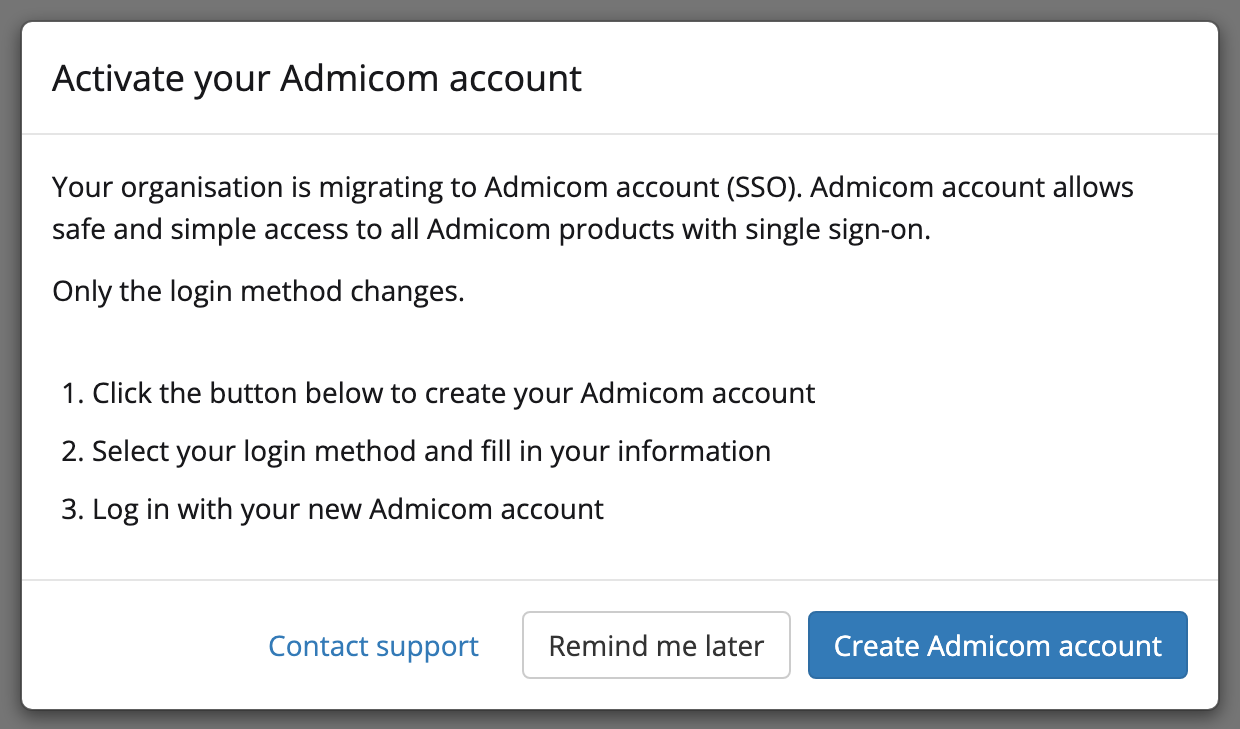
- If you skipped the window earlier, open it from the user menu at the right end of the top bar by selecting Activate Admicom account.
- Press Create Admicom account. The Admicom SSO account creation page opens directly in a new tab, without a separate invite email. The page title starts with your organisation’s name: “… has invited you to use Admicom Trackinno”.
- On the Admicom page, choose how to set up your account:
- Sign up: fill in your details and create a password.
- Microsoft or Google: sign up with your Microsoft or Google account, so you do not need to enter your details or create a new password. Using a Microsoft account may require action from your organisation’s IT support. If it does not work, select Sign up.
- Log in at the bottom of the page: select this if you already use Ultima or another Admicom service with an Admicom SSO account. Do not create a new account.
- Log in with your Admicom SSO account when the page asks you to.
- Return to the Trackinno tab. The window title changes to Your Admicom account is ready.
- Press Log in with Admicom account and, if asked, log in with your Admicom SSO account.
Result: Trackinno opens at https://admicom.trackinno.com, and you are logged in with your Admicom SSO account. From now on, you can log in at this address, or on the old login page by selecting Admicom SSO login.
In the mobile app #
- Open Trackinno Mobile and log in as usual. The Activate your Admicom account view opens.
- If you skipped the view earlier, open the app menu and select Activate Admicom account.
- Press Create Admicom account. The Admicom SSO account creation page opens directly in your phone’s browser, without a separate invite email. The page title starts with your organisation’s name: “… has invited you to use Admicom Trackinno”.
- On the Admicom page, choose how to set up your account:
- Sign up: fill in your details and create a password.
- Microsoft or Google: sign up with your Microsoft or Google account, so you do not need to enter your details or create a new password. Using a Microsoft account may require action from your organisation’s IT support. If it does not work, select Sign up.
- Log in at the bottom of the page: select this if you already use Ultima or another Admicom service with an Admicom SSO account. Do not create a new account.
- Log in with your Admicom SSO account when the page asks you to.
- Return to the Trackinno Mobile app.
- Continue to the Admicom login:
- If the view title is Your Admicom account is ready, press Log in with Admicom account.
- If the view still shows Create Admicom account, press it again. The app recognises the finished account and opens the Admicom login.
- Log in with your Admicom SSO account.
Result: You are logged in to the mobile app with your Admicom SSO account. The app asks you to log in once more, even though you just logged in in the browser – this is expected.
Sending an invite to a user (administrator) #
When a user cannot log in with their old credentials, or does not have any, send them an invite by email. From the link in the invite, the user creates an Admicom SSO account the same way as with the Create Admicom account button in the migration window. Also send an invite to every new user: new users are not given a password, and no invite is sent automatically when a user is created.
- In the desktop version, open Users from the main menu on the left.
- Open the user’s details by clicking their name.
- Go to Admicom account invites and press Send invite.
- Confirm by selecting Send invite.
To several users at once: select the users in the Users list, open Other actions and select Send Admicom account invite.
Result: The user receives an invite by email, valid for 7 days. When they create an Admicom SSO account through the invite and log in with it, the account is linked to their existing Trackinno user. The invite status (“Pending”, “Accepted” or “Expired”) is shown under Admicom account invites; send a new invite to replace an expired one.
Good to know #
- Transition period. During the transition period, the window has a Remind me later button that hides the window for the rest of the day in that browser or app. When the transition period ends, the button is no longer available, and Trackinno can be used only after the Admicom SSO account has been activated.
- Another device. Once you have activated your Admicom SSO account on one device, Trackinno shows the Your Admicom account is ready window on your other devices. Press Log in with Admicom account.
- Logging in from now on. Log in with your Admicom SSO account: to the desktop version at https://admicom.trackinno.com or on the old login page by selecting Admicom SSO login, and to the mobile app by selecting Admicom SSO login on the login page.
Troubleshooting #
- The Your Admicom account is ready window opens after you log in: you logged in with your old email address and password, although your Admicom SSO account is already active. Press Log in with Admicom account, and from now on select Admicom SSO login on the login page.
- Your Admicom SSO account is not accepted in the mobile app: the account details were typed into the email and password fields of the login page. Select Admicom SSO login on the login page.
- Activating your Admicom SSO account fails (for example, the window shows “Something went wrong. Please try again and if that doesn't work contact support.”): press Create Admicom account again. If the problem continues, press Contact support. During the transition period, you can meanwhile still log in with your old credentials and skip the window with the Remind me later button.