SSO Keycloak (Entra ID) setup
Log in as an admin user to the Microsoft Entra admin center.
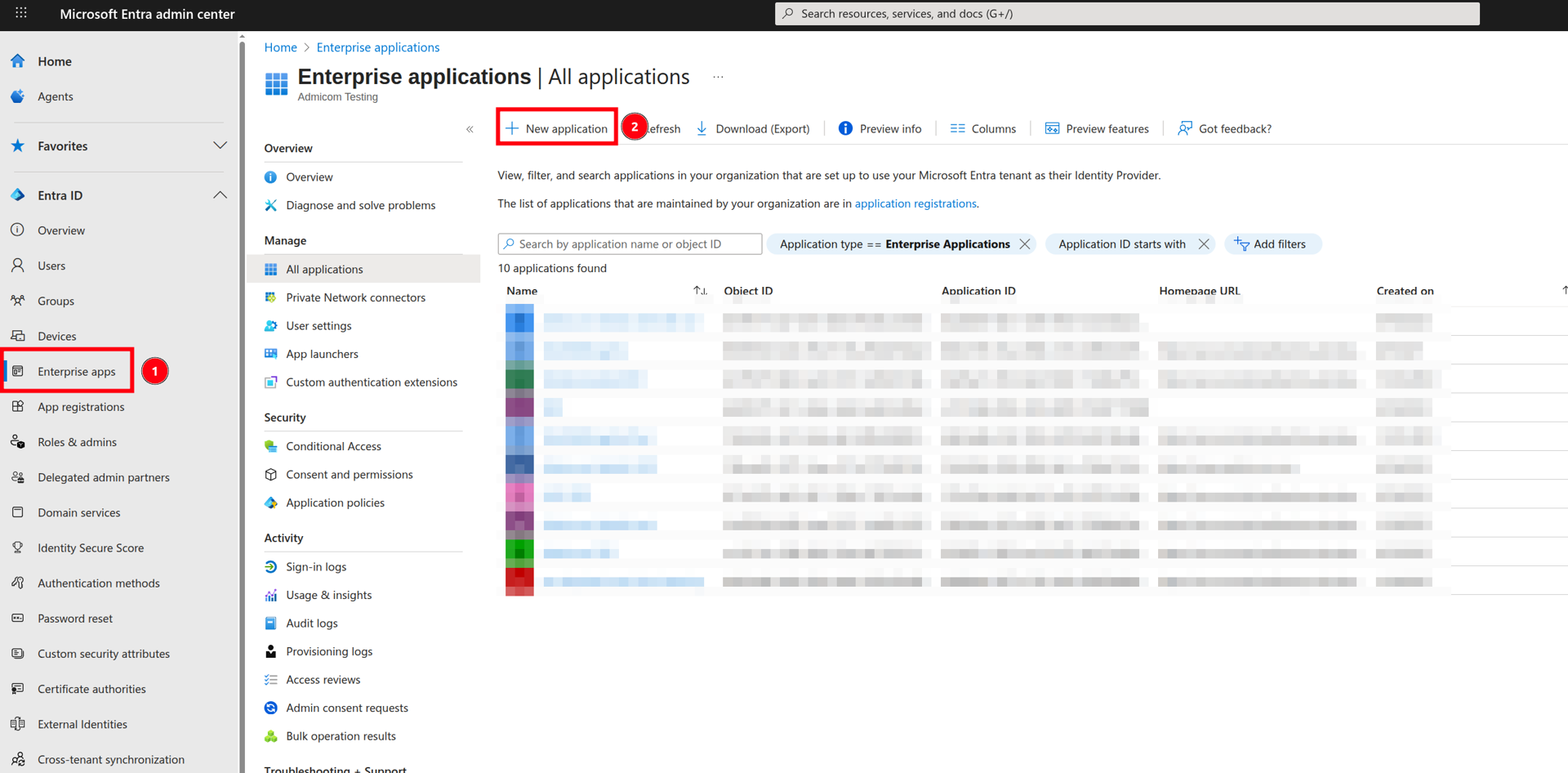
Go to Entra ID → Enterprise applications → New application.
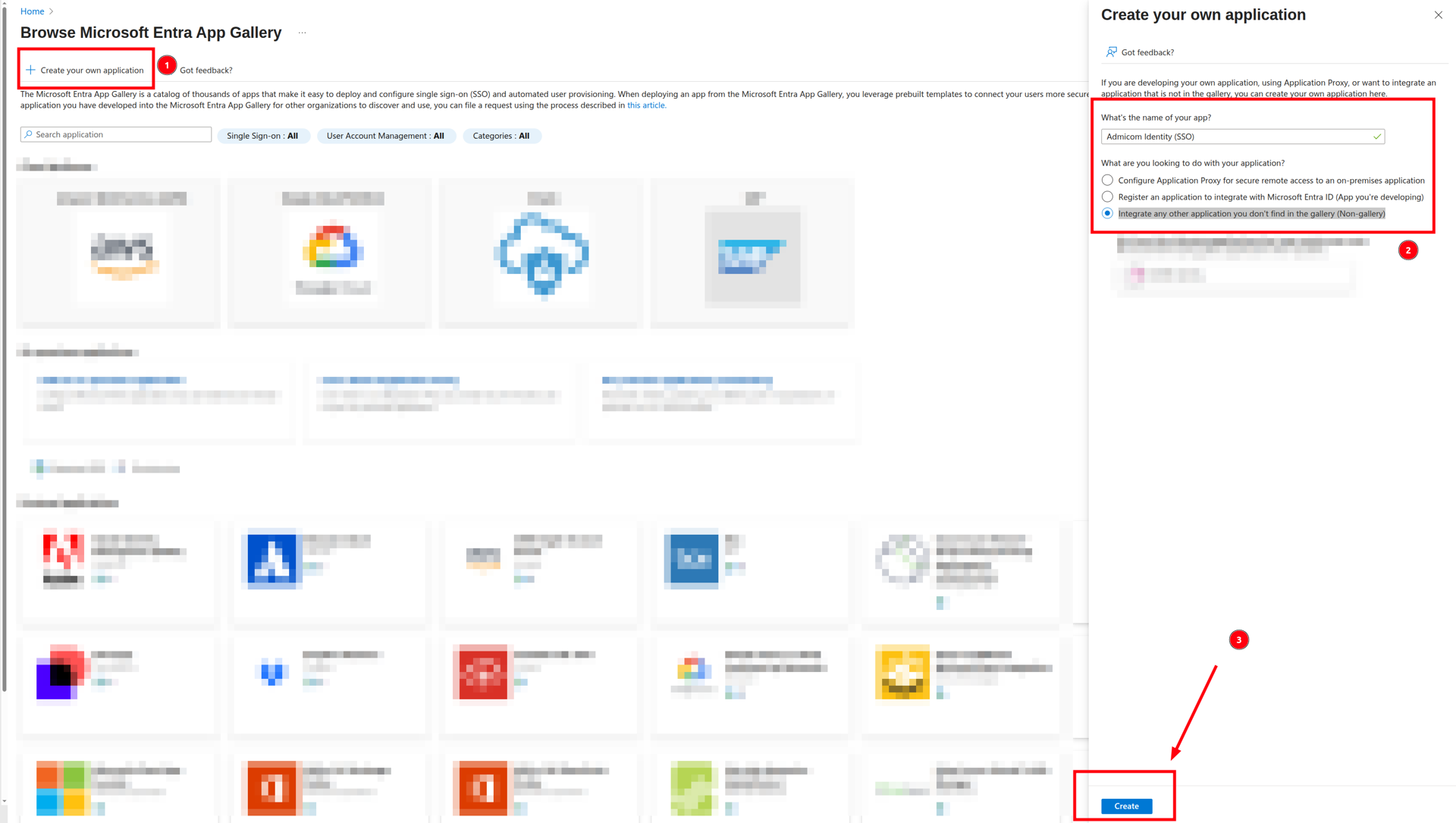
Click Create your own application. Give the application a name (for example, “Admicom Identity”). Choose Integrate any other application you don’t find in the gallery (Non-gallery). Finally, click Create.
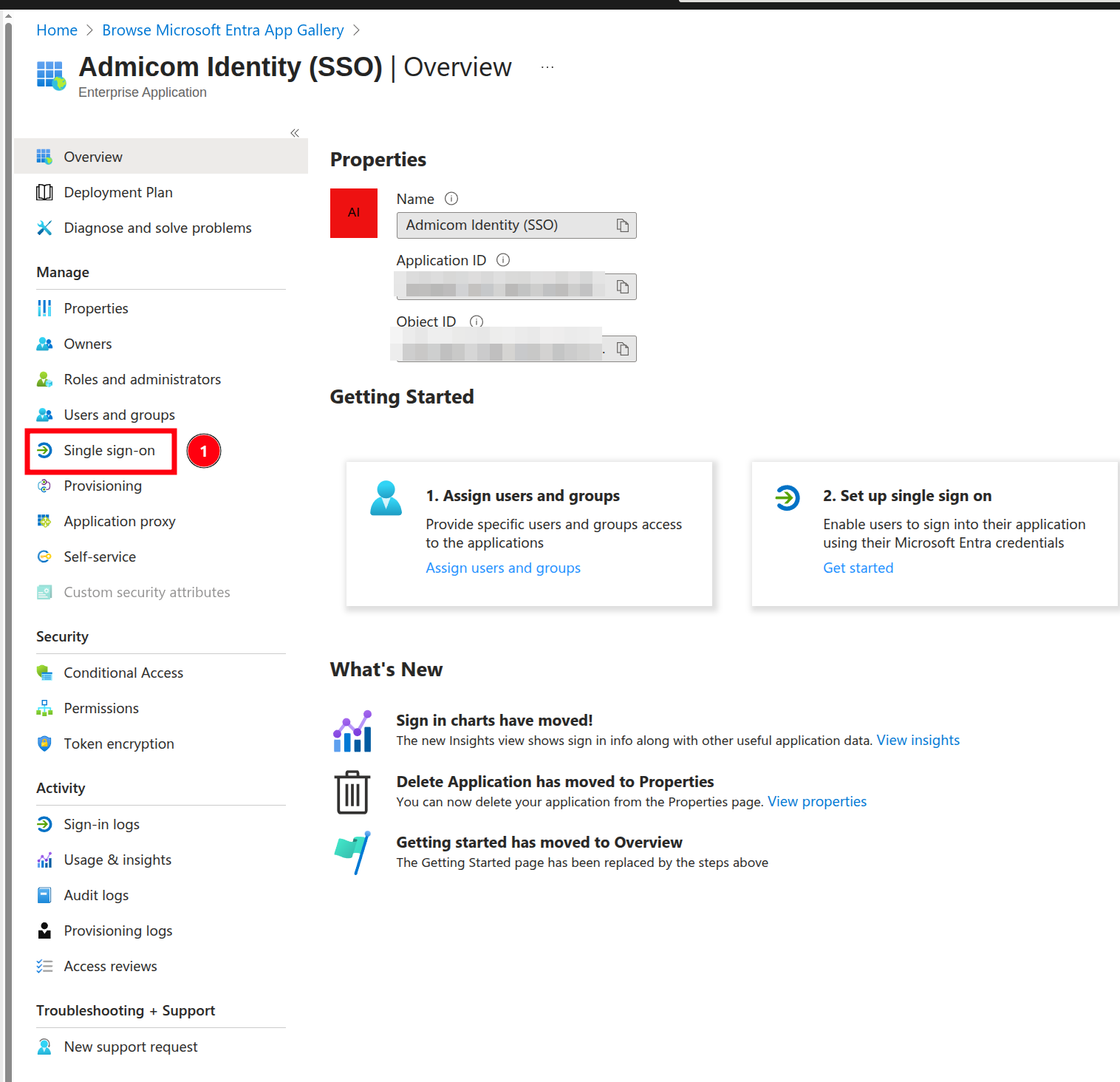
Once the enterprise application has been created, go to Single sign-on.
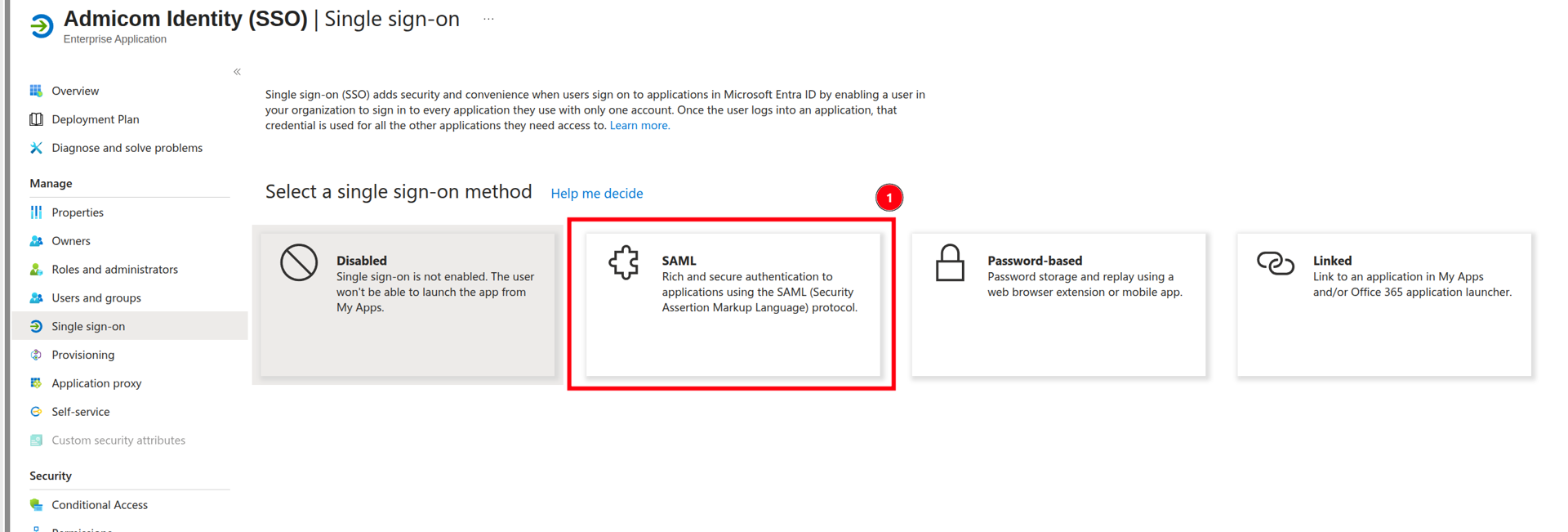
Choose SAML
Click Edit under Basic SAML Configuration. Choose the values depending on the SSO environment (you’ll receive the
<identifier>value from Admicom):Test
Identifier (Entity ID):https://idp.test.admicom.io/realms/admicom
Reply URL:https://idp.test.admicom.io/realms/admicom/broker/<identifier>/endpointProduction
Identifier (Entity ID):https://idp.admicom.com/realms/admicom
Reply URL:https://idp.admicom.com/realms/admicom/broker/<identifier>/endpoint
Press Save.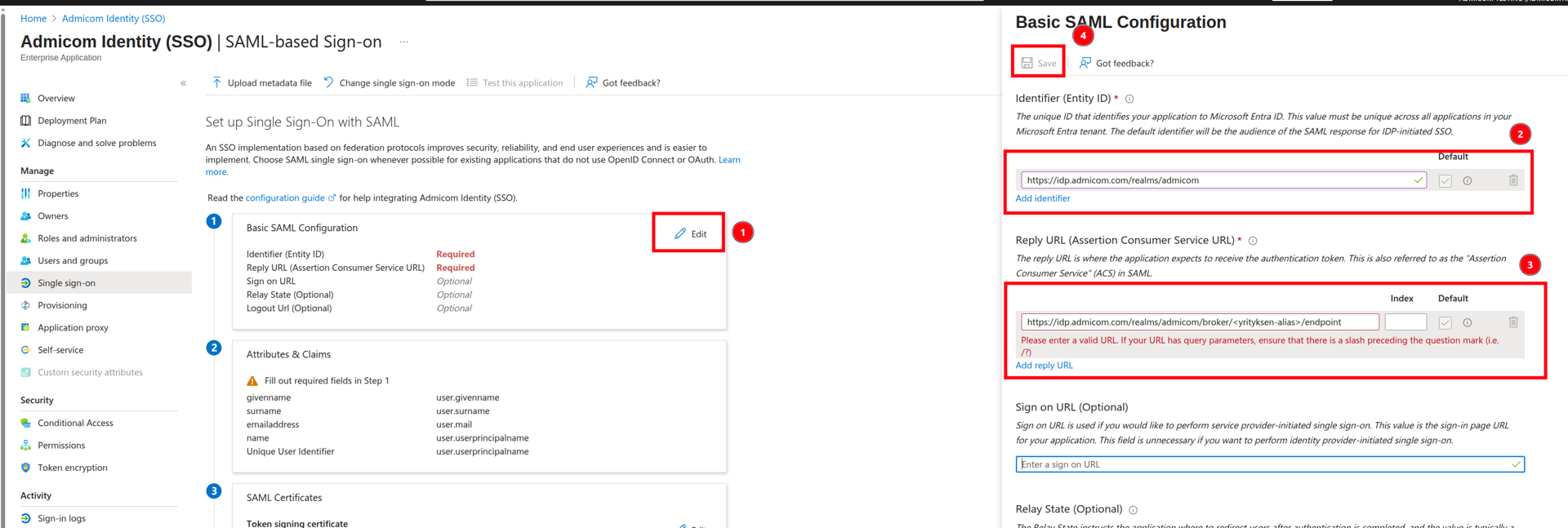
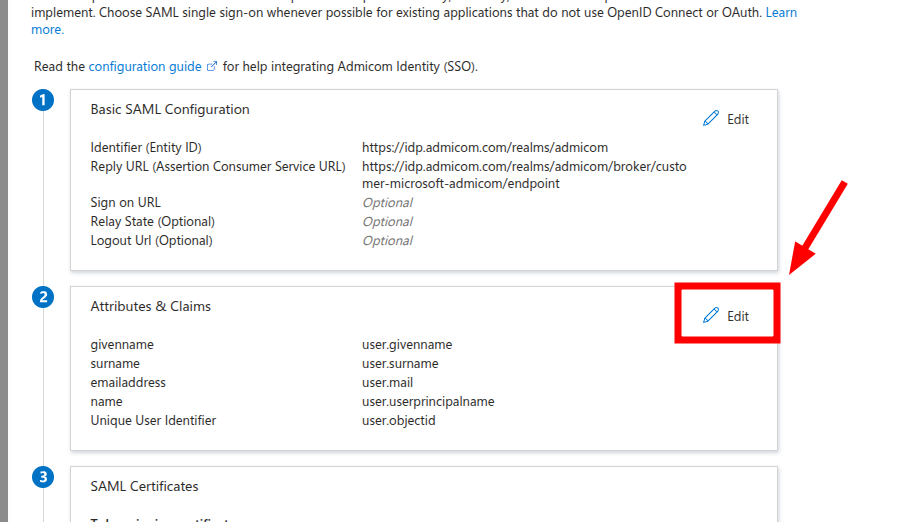
In Attributes and Claims, click Edit.
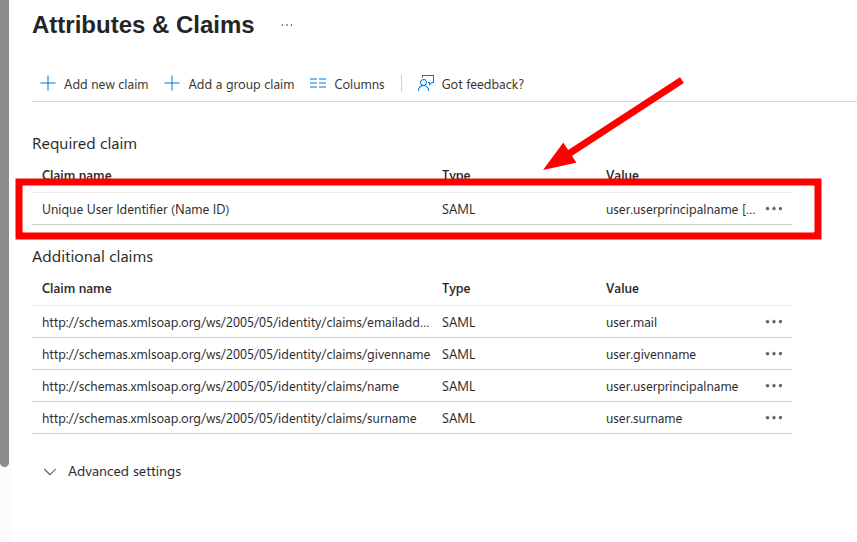
Click the row Unique User Identifier.
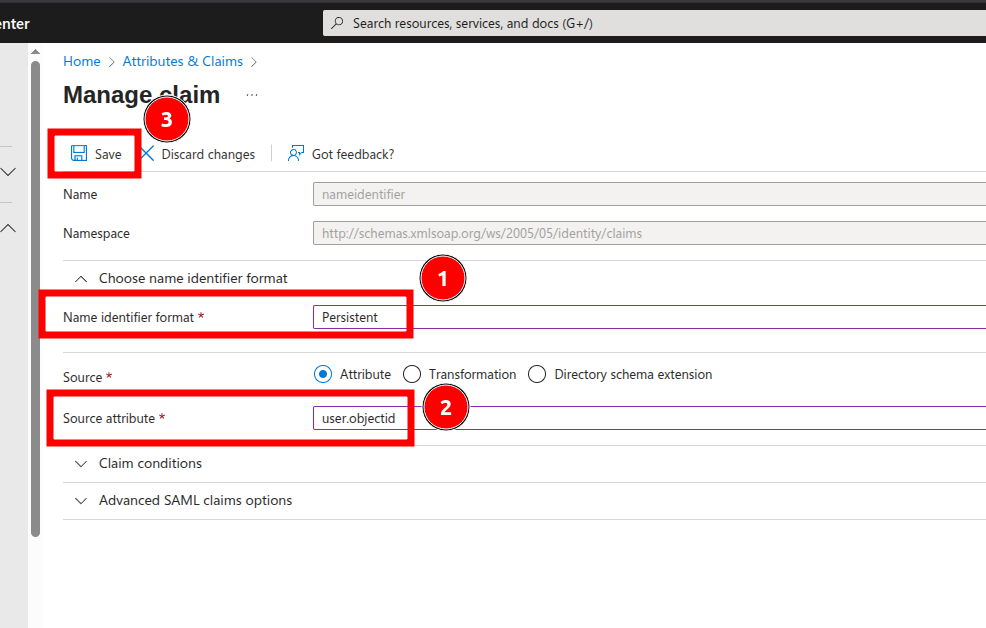
Change the following: Name identifier format: Persistent. Source attribute: user.objectId. Click Save.
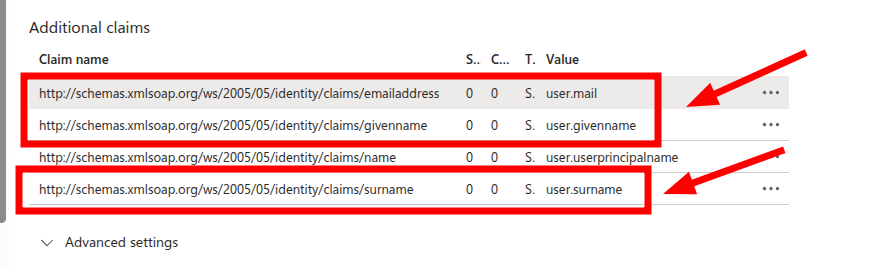
Ensure that the following attributes are also added under attributes:
Copy the App Federation Metadata URL and send it to Admicom
After this, Admicom will complete the necessary configurations on the Keycloak side and will notify you when things are ready.